CoD Mobile Controller Support: Set Up and Diagnose Problems
A controller that cannot move through the lobby is not necessarily broken. Separate device pairing, game settings, and in-match input before troubleshooting.

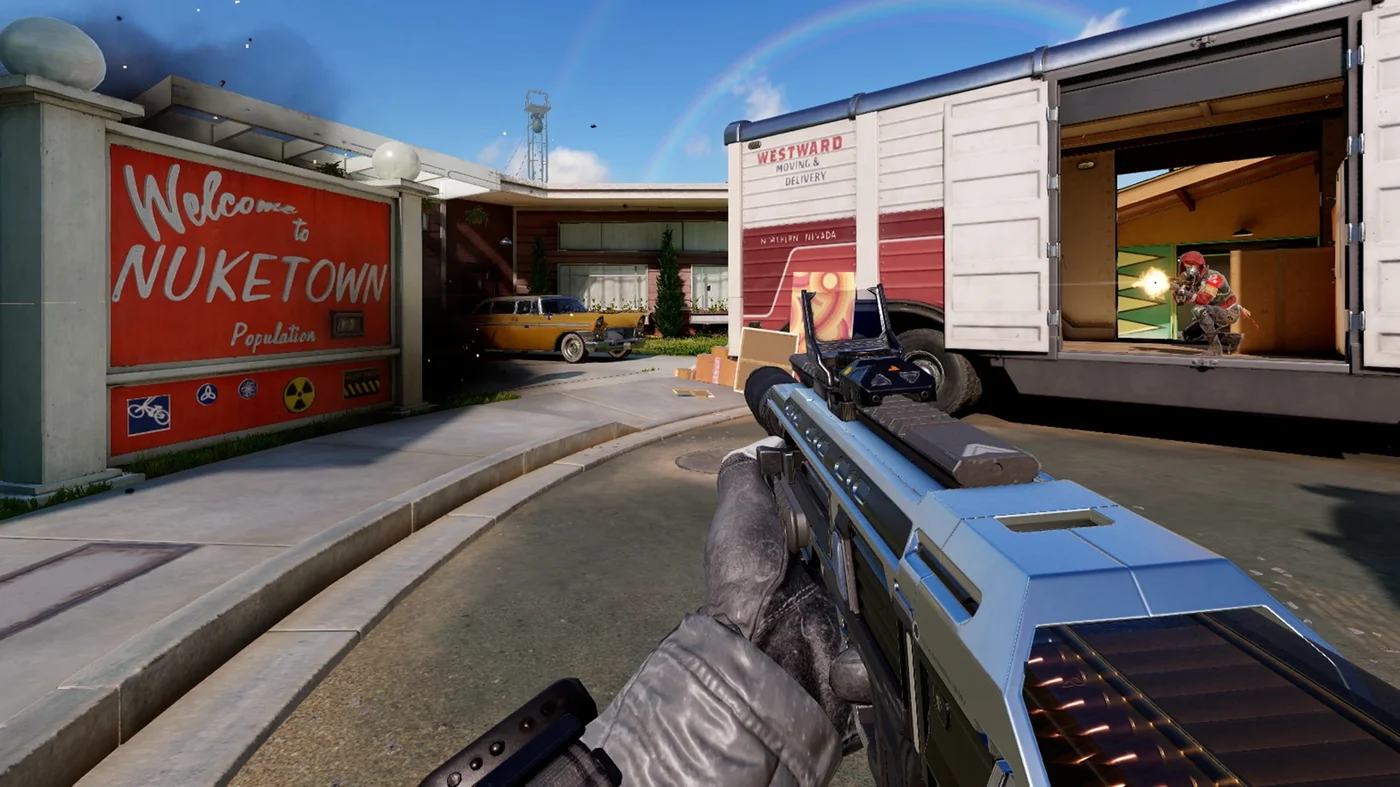
CoD Mobile controller support covers Multiplayer and Battle Royale matches, while lobbies, settings, and loadout menus still require your device's native touch controls. Start by checking your controller against Activision's supported list, pairing it with your device, and enabling controller support in the game. Test input during a match before treating an unresponsive menu as a connection failure.
This guide uses Activision's support documentation checked October 12, 2026. It is a documentation-based guide, not a device-specific hands-on test.
Which controllers are officially supported?
Activision's current support page lists these models:
| Controller | Official support note |
|---|---|
| Official Xbox One controller | Listed as supported |
| Official Xbox Series X|S controller | Listed as supported |
| PlayStation 4 DUALSHOCK 4 | First-generation controllers are excluded |
| PlayStation 5 DualSense | Listed as supported |
| Backbone One | Listed as supported |
Other third-party controllers may work, but Activision does not officially support them. A successful connection to your phone therefore does not, by itself, establish game compatibility. Use the model list as your first filter when diagnosing a problem or considering a controller you already own.
Be careful with older advice. Activision's November 24, 2019 launch announcement named Xbox One and eligible DUALSHOCK 4 controllers. That historical list is narrower than the current help page: it should not be used to rule out DualSense, Xbox Series X|S, or Backbone One today.
For the maintained documentation behind this guide, see Activision's controller support help center.
How do you connect and enable a controller?
For a Bluetooth controller, follow Activision's setup sequence:
- Put your controller into pairing mode, following its manufacturer's instructions.
- Enable Bluetooth on your mobile device and select the controller in the Bluetooth settings.
- Open Call of Duty: Mobile and tap the gear icon.
- Open Controller, then Settings.
- Select Enable Controller Support.
The Controller menu also lets you modify controls for each game mode. Activision says some devices may support a direct wired controller; that is not a blanket guarantee for every controller, cable, and phone combination.
Connect before entering a match, as Activision's launch guidance advises. Keep pairing and game activation separate in your checklist: selecting the controller in Bluetooth settings is one step; enabling it inside CoD Mobile is another.
Our recommendation is to change one thing at a time. If you pair a different controller, alter settings, and change connection method together, you lose a useful record of which change affected the result. Write down the controller model and connection method first, then work through the checks below.
Controller not working? Check these three layers
Diagnose CoD Mobile controller support in this order: the device connection, the in-game setting, then gameplay input. This is an editorial troubleshooting framework based on the documented setup, not a promise that one adjustment will fix every device.
| Check | What to inspect | What the result tells you |
|---|---|---|
| Device connection | Your device's connection to the controller | Start here if the controller is no longer connected |
| Game activation | Whether controller support is enabled | A device connection alone does not complete setup |
| Gameplay input | Whether controls respond inside a match | An unresponsive lobby is not a meaningful gameplay test |
Activision specifically reserves controller input for matches. Use touch to navigate the lobby and select your loadout, then assess the controller once gameplay begins. Repeatedly pressing buttons on the settings screen cannot establish that in-match support has failed.
If the device was left idle, check the connection again: Activision warns that idle periods can disconnect the controller and require reconnection. If problems continue, record what you observed at each layer before seeking support. A report saying “connected in device settings, enabled in game, no response during a match” is more useful than “controller broken.”
Avoid treating undocumented fixes as guarantees. The sources checked here do not establish universal sensitivity values or a device-wide compatibility matrix. Once input works, our Call of Duty: Mobile beginner loadout guide covers the separate task of choosing your starting equipment.
Does a controller change matchmaking?
Yes. Activision describes separate matchmaking by input: solo touch players face other native-control players, while solo controller players face other controller players. If one party member uses a controller, the party is matched with controller players.
Tell your group before queueing. A touch player joining a controller-using friend should understand the party rule rather than assume their individual input determines the pool. Activision's FAQ does not supply queue-time measurements, so there is no verified wait-time estimate to promise here.
The practical takeaway: verify the model, complete both connection steps, and judge input in gameplay. Decide on the party's input arrangement before starting your session.
FAQ
Why does my controller not navigate the lobby?
Are PS5 controllers supported?
Can I use an unlisted third-party controller?
Will my touch-playing friends enter controller matchmaking?

Covers RPG and live-service guides for VoxRig, building every build and loadout around official patch notes, in-game data, and community-verified strategies — not summarized from a single source.